WHAT ARE GROUPS?
By default, your Moodle classroom contains the official student groups with which you created or reactivated it. These are usually Sigma and/or TCS groups. Adding or removing these groups is managed from the Virtual Campus dashboard (Where can I manage the students in the classroom?). From the dashboard, you can see at any time which Sigma and/or TCS groups are assigned to your classroom.
However, you can also see which groups are assigned and who belongs to them within the virtual classroom. To view them,
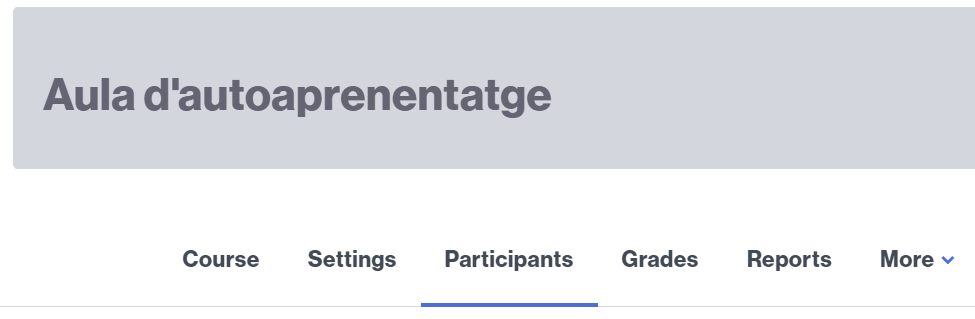
- From the classroom’s main page, access the Participants link.
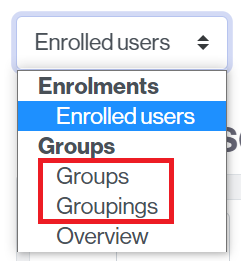
- Pull down the menu Enrolled users and select Groups.
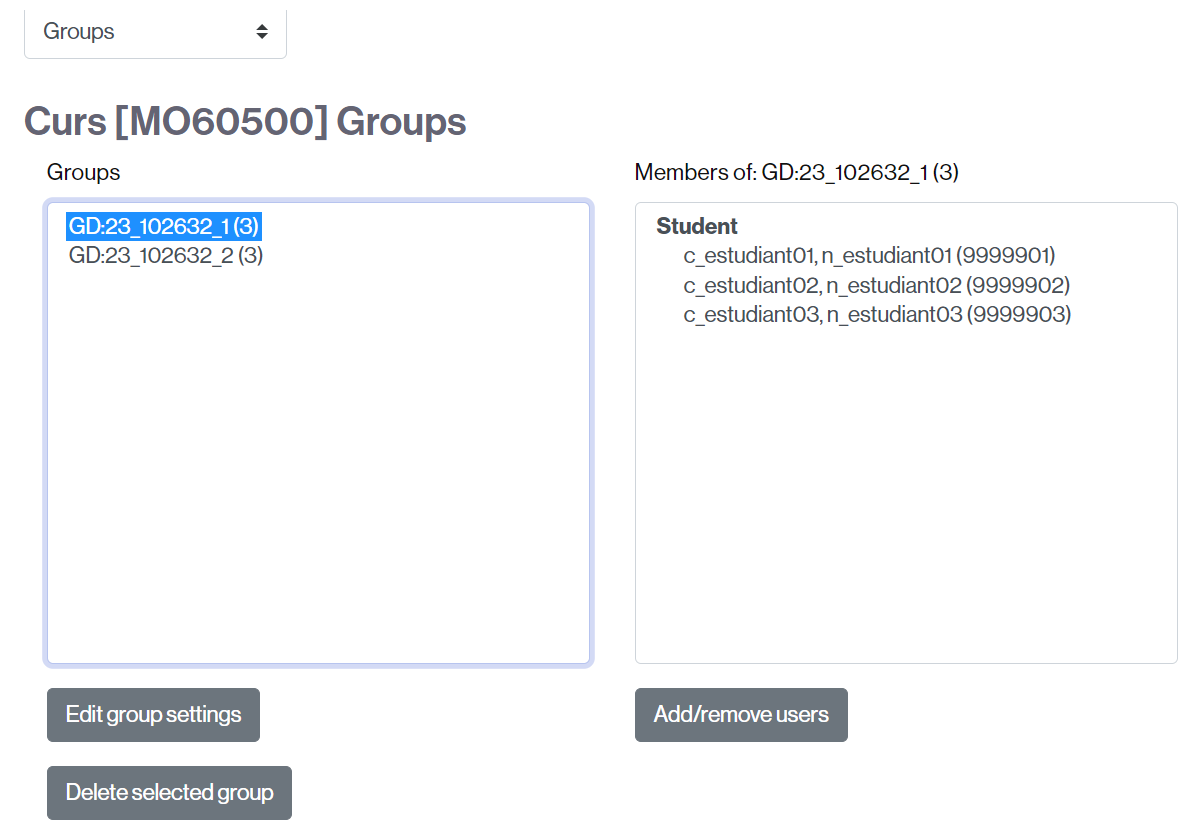
- From here you will see the list of groups and the people it contains. If this list is not updated, consult the following information.
CREATING GROUPS
However, in the virtual classroom you can create another type of group (called “local groups”). These groups can be useful if you want to work with sets of students, regardless of whether they belong to the same Sigma (or TCS) group. When created, these groups will also appear in the list above.
For more information on creating groups in the classroom, you can consult this entry.
USES OF GROUPS
Whether groups are provided by default or created manually, you can use them to create, for example, assignment submissions targeted to specific groups, send messages or, href=”/ajuda/en/moodle/gestio-del-curs/restrictions-dacces/com-crear-una-activitat-o-un-recurs-visible-unicament-per-un-o-varis-subgrups-dalumnes/” target=”_blank” rel=”noopener noreferrer”>rrestrict the visibility of information also to certain groups.
WHAT ARE GROUPINGS?
A grouping is a set of groups and, once created, you can work with it in the same way as if it were a group: work deliveries, restrict the visibility of information,…
IMPORTANT. If you want to work with a set of classroom groups—for example, to make group submissions or to restrict access to activities, resources, or classroom sections—you need to create a grouping that encompasses those groups.
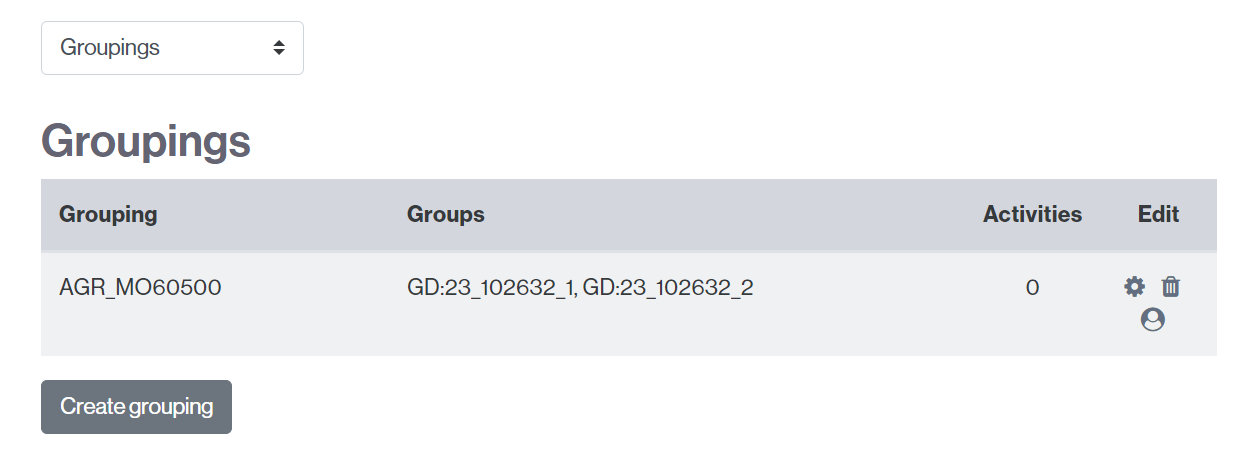
To create a group, access Participants people, drop down the menu Enrolled users and select Groupingss.
By default, the group “AGR_MOXXXX” always appears, which is the one that contains all the groups that come with the classroom by default.
IMPORTANT. If you delete this grouping, it will appear again the next day. It is better that you ignore it.
CREATING A GROUPING
See the post How to create a grouping.