 If you want to delete a category and all the questions it contains, you will first have to delete the questions (How to delete a question from the classroom question bank) and then the category.
By default, if the category to be deleted contains questions, during the question deletion process you will be asked to move them to another category before deleting it.
To delete a category:
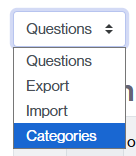
- Find the category you want to delete.
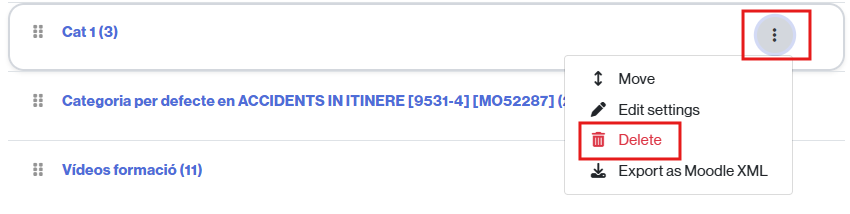
- Click on the three-dot icon located to the far right of the category and select the Delete option from the actions menu.
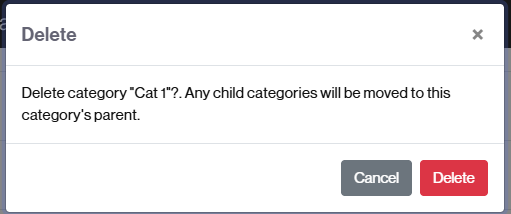
- An informational message about deleting the category will appear. Click Delete to continue with the deletion.
IMPORTANT. If the category you want to delete does not contain questions, it will be deleted directly by clicking the Delete button. If it contains at least one question, an additional step will appear before deletion.
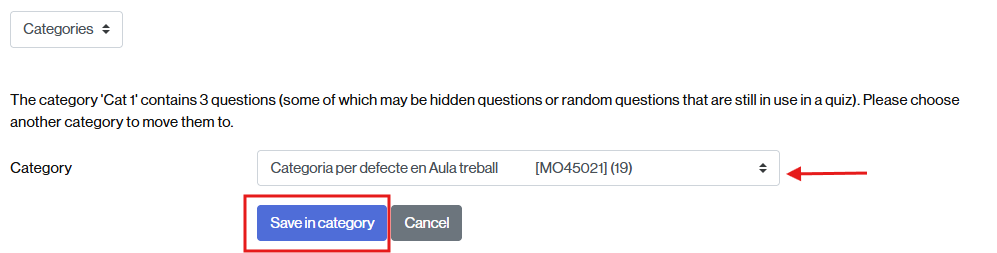
- If the category you wish to delete contains one or more questions, a message will appear asking you to select a new category to move those questions to.
- Click on the Default category in… dropdown menu to select the category where the questions from the deleted category will be moved.
- Once selected, click the Save in category button. Clicking this will move the questions and permanently delete the deleted category.