The offline quiz activity draws from the classroom question bank: it is recommended to have the questions in the classroom bank and assign them to the activity during its design.
If you do not regularly use the classroom bank or wish to have quiz marking templates and submit the question text created outside the virtual classroom, you can create a GIF file with “empty” questions, import it into the question bank, and use it later. One way to create the GIF file is to use a GIF question generator – [click to open the file] (currently only available in Catalan).
It will allow you to generate a specific set of questions where the questions and answers will be generic text (Question 1, Question 2, Answer a), Answer b)…), with a default penalty.
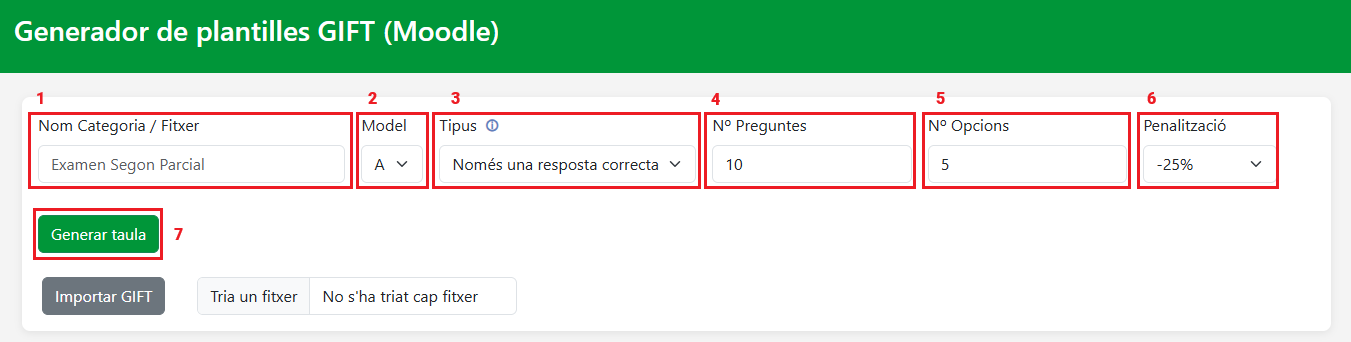
The fields you will see will allow you to:
- Identify the name of the test for which you will create the questions (1).
- Identify the permutation (Exam Model) (A, B…) – the offline quiz activity allows you to perform up to 6 permutations (2).
- Define whether (by default) the questions will have one or more correct options (3).
- The number of questions you want to generate (4).
- Define the number of answers that will be displayed with each question (5).
- Define the penalty that will be applied by default to each incorrect answer (6) – once the questions are generated, you can modify the penalty for each question, if needed.
Once these parameters are defined, you must generate the questions by clicking on the button Generate table (7).
A table will appear with all the questions and answer options. Each question will have its own identifier (a label), automatically generated and visible in the Question Name column.
For each question, you must specify which option is considered correct. To do this, click on the corresponding box in the Correct column. The score for the correct answer will change to 100%.

If you wish to apply different penalties (or remove some) from one or more answers (or all of them), click on the penalty percentage for each question and choose the option that best suits you from the drop-down menu.
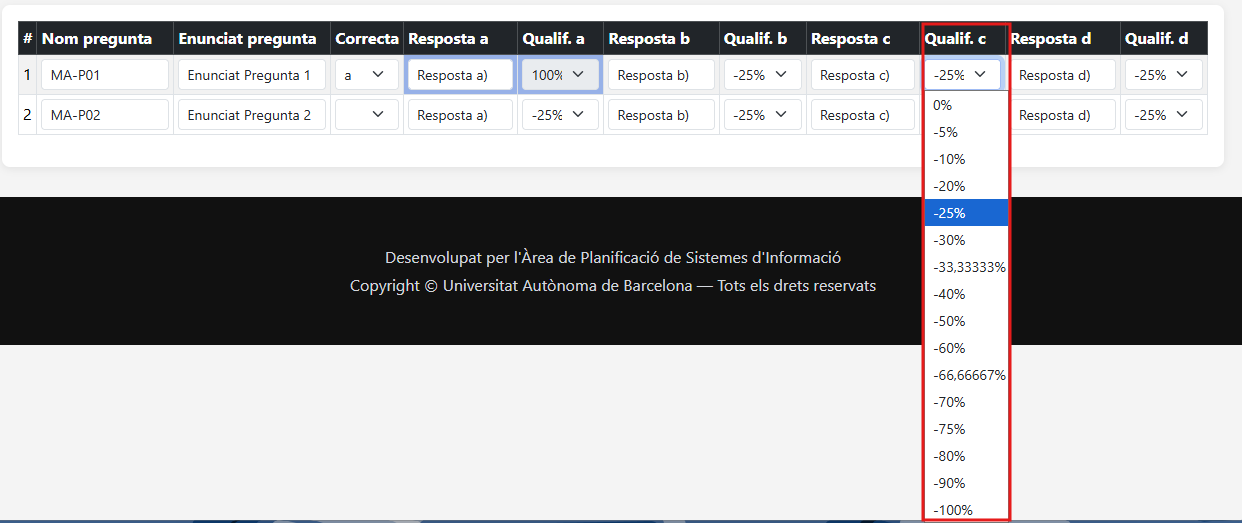
Once you have customized the question table to suit your needs, you must generate the GIFT file (which you will import into the classroom question bank). To do this, click the Generate GIFT button. The generated file will have the .txt extension.
Remember: You will need to import this file into the classroom question bank to be able to assign these questions to offline quiz activities. If you don’t remember how to do this, you can consult the following information: How to import the question bank from a virtual classroom?. When importing, select the GIFT format and attach the file generated earlier.