You can modify the order of one section with the classroom edition activated (Where do you “Turn editing on”?).
Once activated you have two options.
OPTION 1. FROM THE CENTRAL CONTENT AREA
- Hover over the section to be moved.
- The icon will appear
 .
- Click the right mouse button and drag the section with the mouse, to the destination.
OPTION 2. FROM THE COLUMN OF THE COURSE INDEX
- Search the section you would like to move and click on the icon to show the available options.
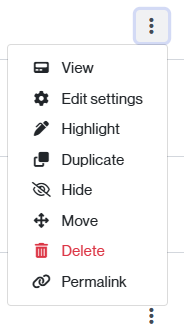
- Select the Move option and then, the place you wish to move the section.
OPTION 3. FROM THE COLUMN OF THE COURSE INDEX
- Open the course index,

- Hover over the section to be moved.
- The cross icon will appear.
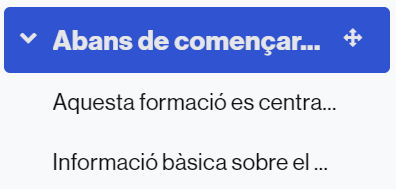
- Click the right mouse button and drag the section with the mouse, to the destination.
Finally, turn off classroom editing.