Once you’ve created categories in the classroom bank, you can reorganize them if needed.
There are several ways to do this.
Option 1. Drag the category to a new position
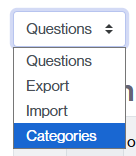
- Find the category you want to move.
- Click the left mouse button on the three-dot icon located to the far right of the category.

-
- With the button pressed, drag the category to the position where you want to move it.
You will see that the line separating two categories turns blue.
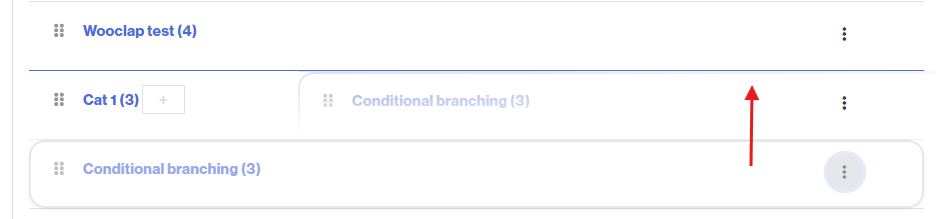
- Release the mouse button to move the selected category to the selected position.
Option 2. From the actions menu
- Find the category you want to move.
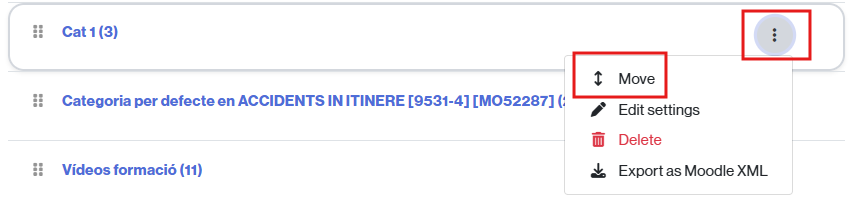
- Click the three-dot icon to the right of each item in the category and, from the actions menu, select the Move option.
- Select the position where the new category will be located by clicking on one of the following options: “Before [category name]“, “After [category name]“, “As a child of [category name]” (in this last case, the category you want to move will become a subcategory of the selected category [category name]).
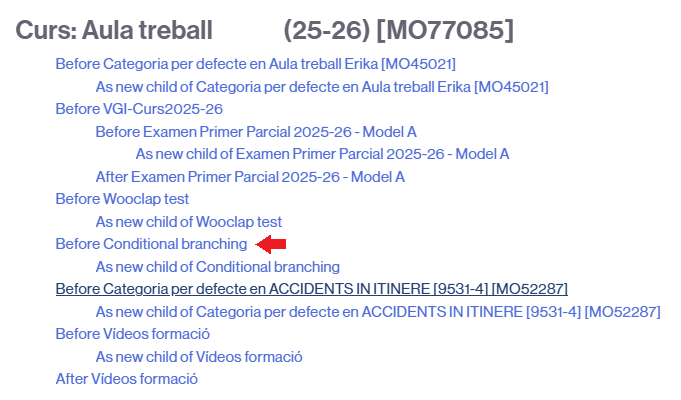
- Once the new position is selected, the change will be reflected automatically.