To facilitate marking, the answer sheets have marks in each corner – crosses. These reference marks allow for the correct identification of the exam markings: both the student’s NIU (National Identification Number) and the selected answers. Therefore, it is crucial that Moodle correctly detects these reference marks.

Possible errors
Error: Could not grab
One possible error is that Moodle may not correctly interpret the reference marks and, therefore, cannot grade the exam.
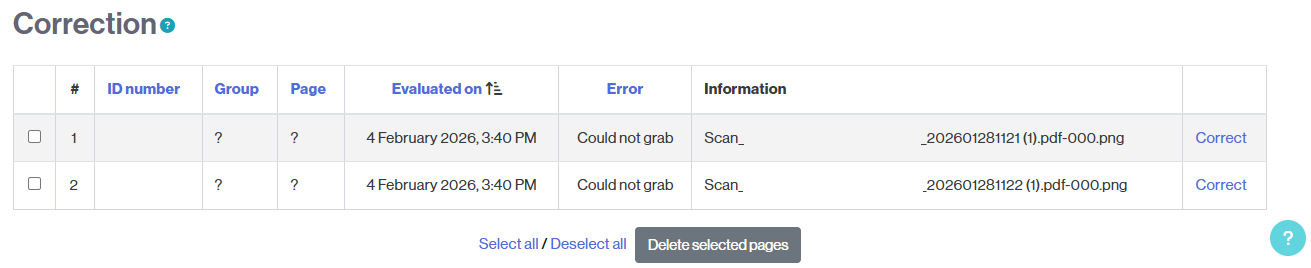
By clicking on Correct, you can access the student’s exam and adjust the marks.
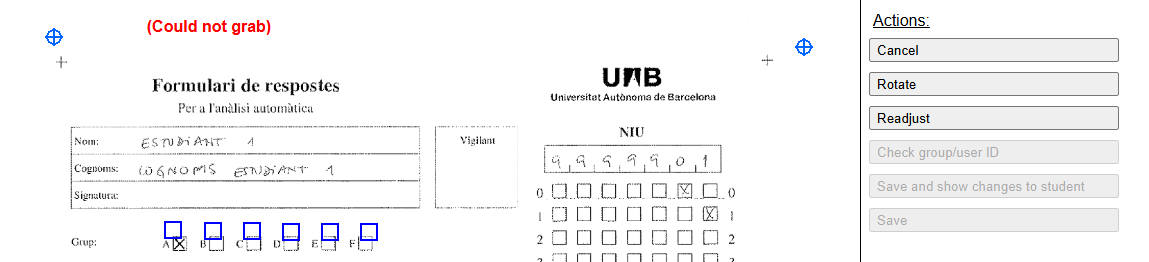
Drag the blue marks (crosses) to align them with the reference marks in the document and click on Readjust. NOTE: You may also need to select other options, such as the exam format (Group) or the student’s NIU (National Identification Number).
Once adjusted, Moodle will interpret the marks (the responses) and correct them.
Error: User does not exist
A second possible error is that Moodle may not correctly interpret some (or all) marks of the NIU, or that it interprets them correctly but that NIU is not registered in the virtual classroom.
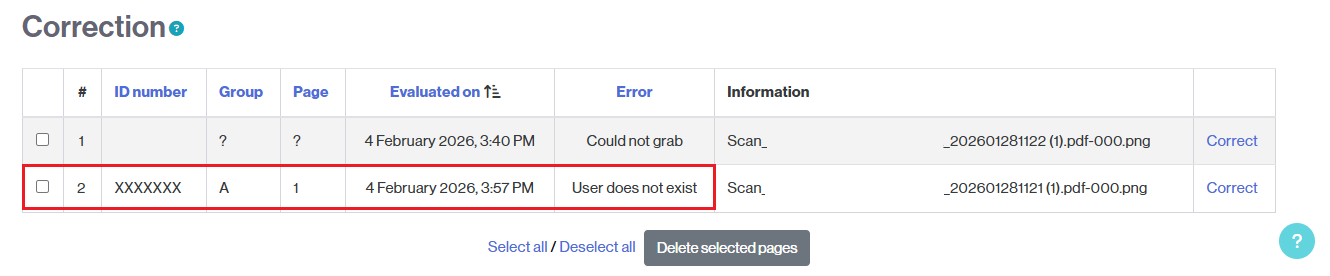
Clicking on Correct will give you access to the student’s exam.
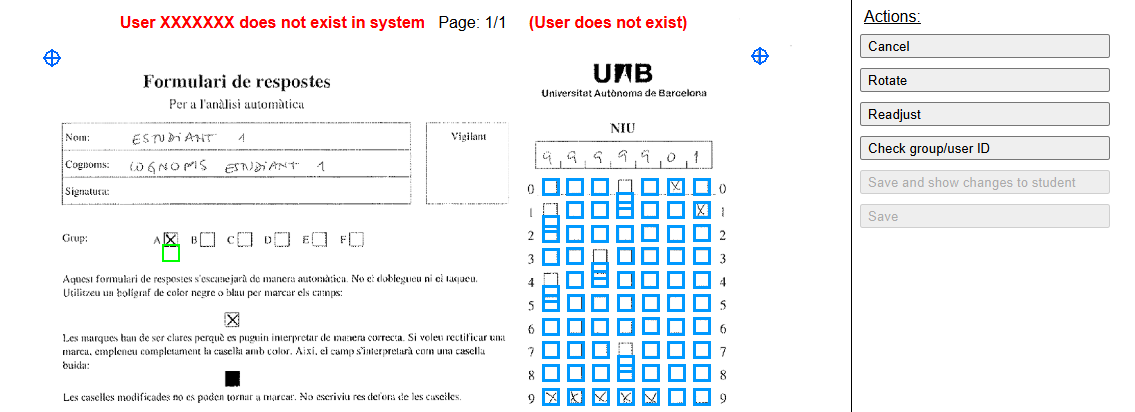
Adjust the NIU (by clicking on the corresponding NIU boxes) and save the changes by clicking the Check group/user ID button.
Once adjusted, Moodle will proceed to grade the exam.