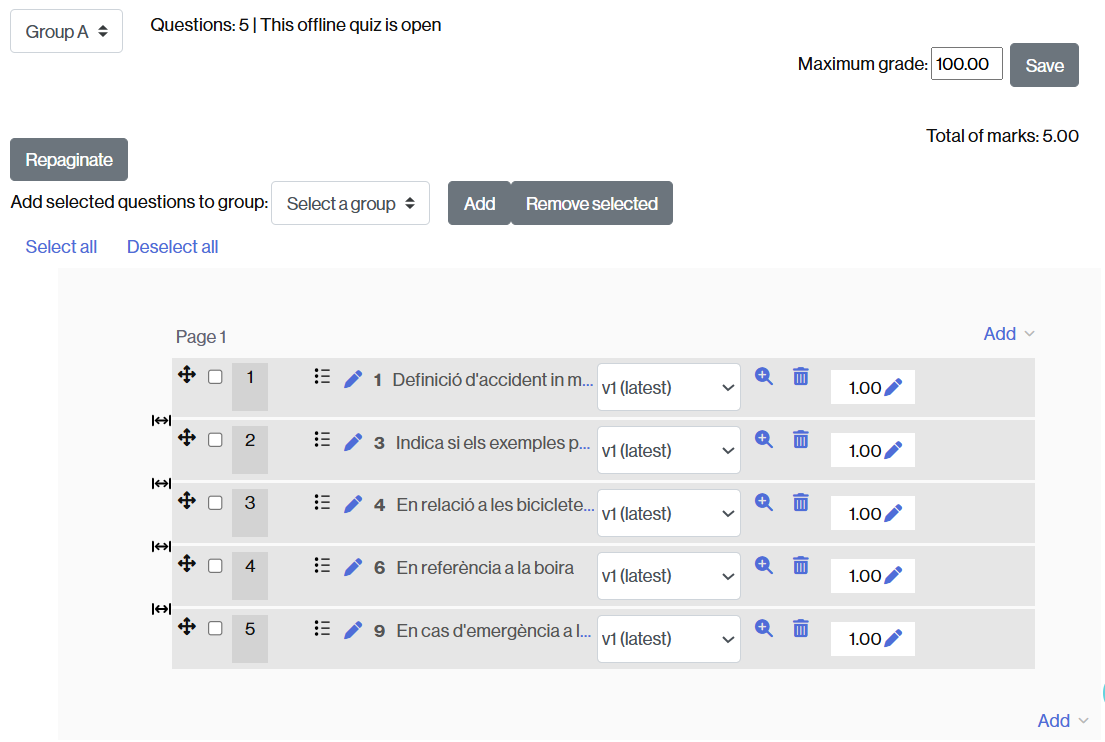
Once the Offline Quiz activity has been created (How to create an offline quiz activity) and its basic features configured, you will need to assign the questions that the students will have to answer. These can only be of the Multiple Choice type (with one or more correct answers).
TIP. If you want to include a true/false question, you can create a multiple-choice question where the answers are True/False.
RECOMMENDATION. We recommend using questions previously entered in the Classroom Question Bank.
How do I assign questions to the activity?
To create the questions:
- Access the created activity.
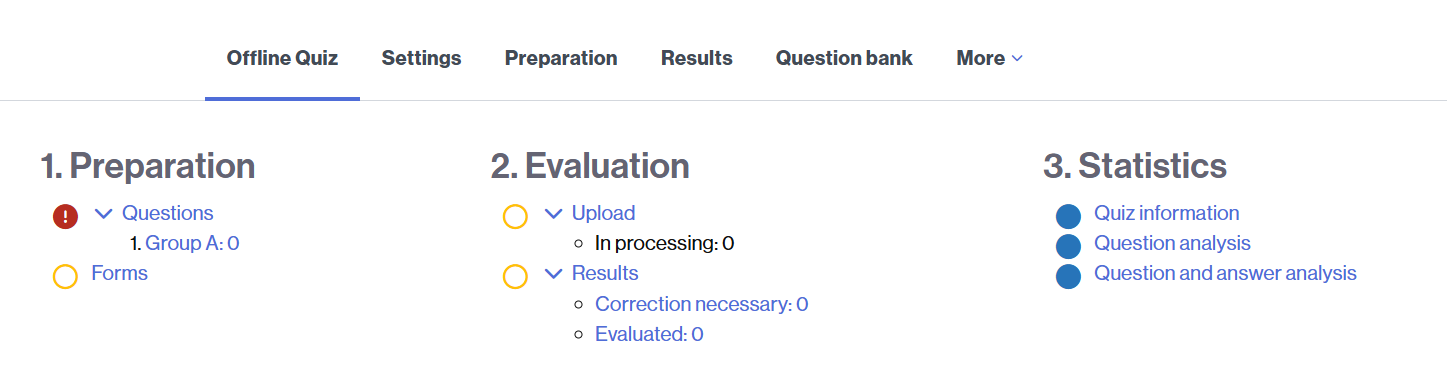
- On the Offline Quiz tab, click on Questions (section 1. Preparation).
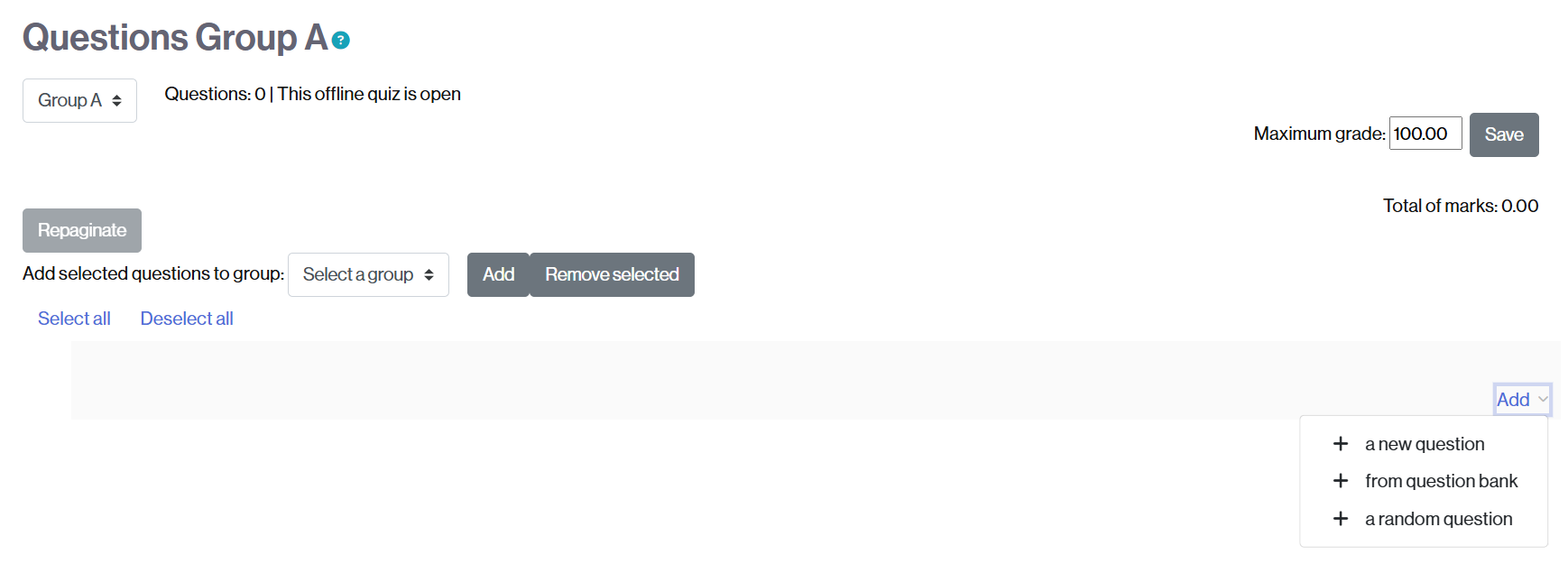
- At the bottom of the page, click Add to open the menu. Select the + from question bank.
- Select the category you want to work with and the questions you want to appear in the exam.
- Once selected and added, you can, if you wish:
-
- Modify the maximum grade – by clicking on the box, modifying the grade, and clicking Save.
- Modify the individual score of one or more questions – by clicking on the pencil icon that appears next to the question’s score, modifying it, and pressing the Enter key.
-